Bell Manager support
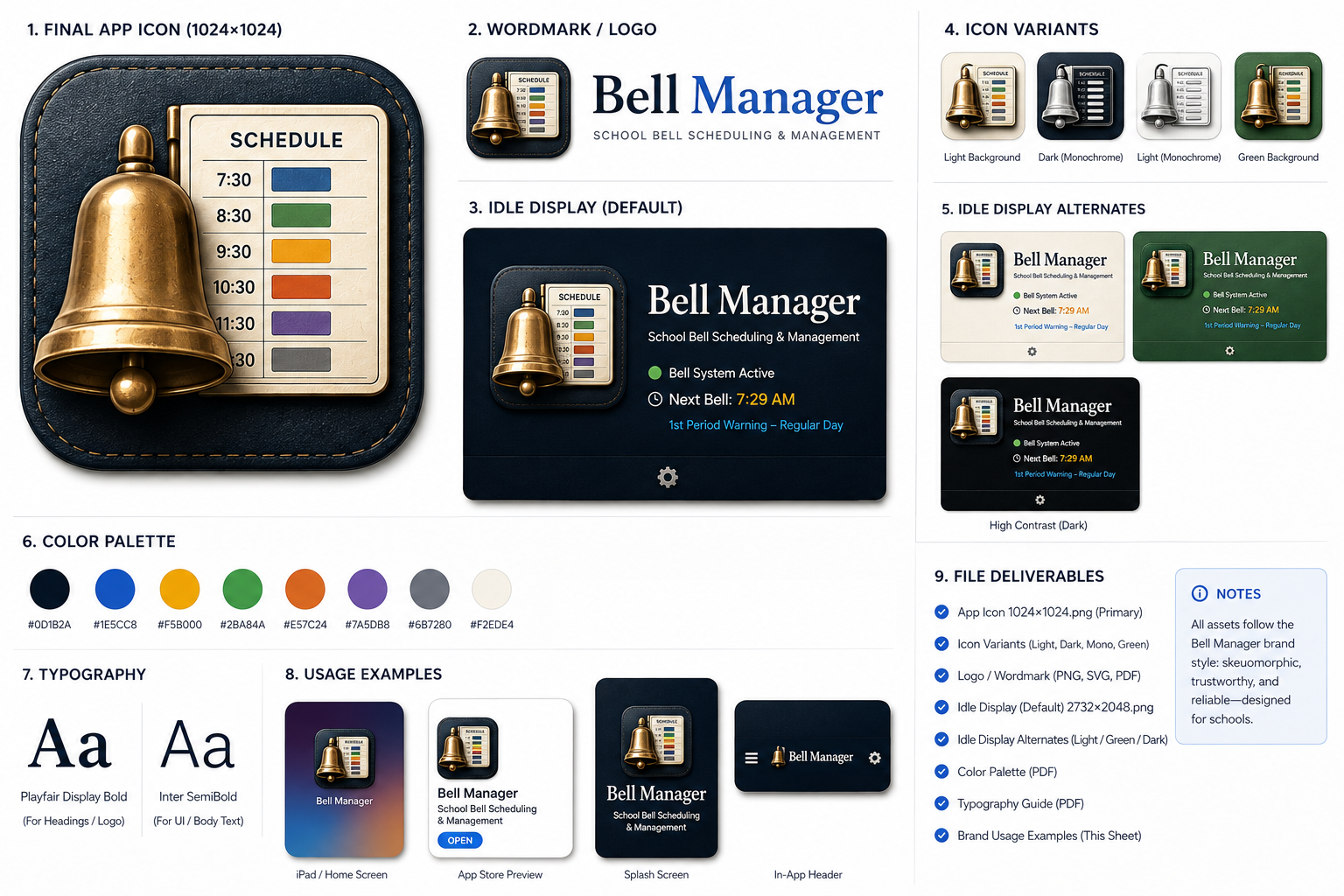
Set up and operate Bell Manager on your iPad.
Getting Started
Connect the dedicated iPad to the school’s existing PA or audio system. Open Dashboard to see Bell System readiness, the Running Schedule, and the Next Event. Use Health Check to confirm the audio path and scheduler before relying on scheduled bells.
Bell Schedules
In Bell Schedules, create reusable day templates and periods. For each period, set start and end times and choose its Warning, Start, and End bell controls. A Bell Schedule runs when assigned through Weekly Schedule or Calendar Schedule; creating one does not activate it.
Weekly Schedule
Assign a Bell Schedule or No Bells to each weekday. These assignments provide the normal pattern; Calendar Day Overrides can change individual dates.
Calendar Day Overrides & Additional Schedules
Select a date to keep its Weekly Schedule, use a different primary Bell Schedule, or choose No Bells. Add Additional Schedules for events on the same date. You can configure or reset multiple dates together; conflicting changes are rejected before they are saved. Reset returns dates to their Weekly Schedule behavior.
Bell Sounds & Audio
Use Settings → Bell & Audio to choose default Bell and Warning sounds and their separate volumes. The Bell Sounds library accepts custom WAV, MP3, M4A, and AAC files. Test and Play use the connected production audio output and may be heard over the PA system. Set the iPad’s output volume and Bell Manager volumes before testing.
CSV Import
In Bell Schedules, choose Import CSV and select a file through the iPadOS Files picker. The app checks the rows and reports errors before importing. A blank Bell Schedule template is available from the import menu. Calendar Day Overrides also offers CSV import for date-specific primary overrides. Refer to the in-app template for the current format.
Health Check
Open Health Check to inspect the audio session, Bell sound availability, wired output, iPad volume, Bell Manager volumes, scheduler, current schedule, and reliability state. Its Event Log link shows recent operational history.
Manual Bell
Tap Ring Bell Now on Dashboard to play the configured default Bell immediately through the production audio output at the configured Bell volume.
Troubleshooting
If a bell does not play, start with Health Check. Confirm the wired output, iPad volume, Bell Manager volume, configured sound file, scheduler, and the day’s Running Schedule. Use Event Log to review missed events and playback results. A No Bells day has no primary Bell Schedule, though it may still have Additional Schedules.
Contact Support
Email support@ryanfisherproducts.com with the issue, iPadOS and app versions, and relevant Event Log details. Please omit student information, passwords, and other sensitive details.